| MATLAB Installation Guide for PC | |
License File
A License File is a specially formatted ASCII text file that contains encrypted product passcodes for each product you are licensed to run. Each product passcode identifies the number of keys available for each product. The license manager grants or denies access to a product depending on the availability of the license keys associated with each product.
The MathWorks includes information in your License File that identifies the system on which you intend to run the license manager. You had to identify this system, your license server, when you made your purchase. The MathWorks needs the Host ID of your license server when it creates your License File. See Finding the Host ID on a Windows System for more information.
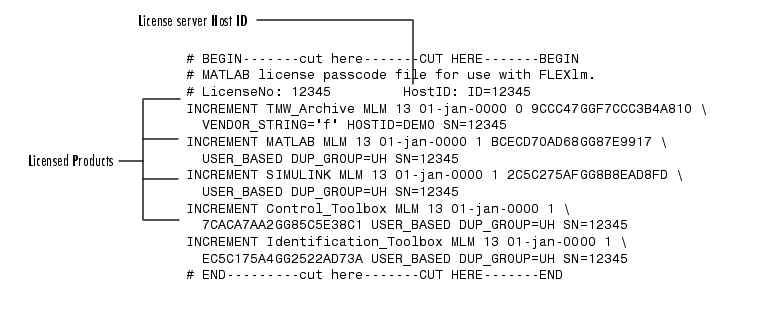
Figure 2-1 is a sample of a License File sent by The MathWorks. Each line in the License File that begins with the keyword INCREMENT identifies a product you purchased. The lines that begin with a pound sign (#) are comments. The license server identification information (Host ID or Internet address) is included as a comment in the License File. A backslash character at the end of a line indicates that the line continues onto the next line. (For more detailed information about License Files, see License Management.)
Figure 2-1: Sample License File
Creating Your License File
You must create a License File from the license e-mail you received from The MathWorks. Open a text file using a text editor, such as Notepad, and copy the section of the message marked by the BEGIN and END lines into a text file. Name the file license.dat and store it in a temporary directory, such as C:\TEMP. Make sure you save the file as a plain text file and that the text editor does not add a .txt file extension to the filename.
If you received your license information in a fax, you must create a License File. Open a text file, using a text editor, and type in the license information exactly as it appears in the fax. Take care to preserve all spaces and line breaks.
| Note The MathWorks recommends that you do not edit your licensing information. Any changes you make can invalidate your License File. |
Obtaining Your License Information
If you did not receive your PLP and License File, you can obtain them during the installation procedure by clicking the Get my PLP button on the Personal License Password dialog box and the Get my License File on the License File Path dialog box. You can also obtain them by contacting the MathWorks via
www.mathworks.com/mla. Log in to MATLAB Access using your last name and Access number. MATLAB Access membership is free of charge and available to all customers. The primary contact on each license is automatically enrolled in MATLAB Access. Your Access number is sent via e-mail.
www.mathworks.com and click Contact Us at the top of the page.
When requesting your license information, please have ready, or include in your e-mail or fax, these items:
license or ver at the MATLAB prompt, or look in your existing license.dat file.
Finding the Host ID on a Windows System
On Windows systems, you use the Ethernet address or IP address as the Host ID. To get this information, run the ipconfig command from C:\WINNT\system32.
| | Network Licensing Options | Setting Up a Network Installation | |